Creating a Modern React Admin Dashboard with Custom Features
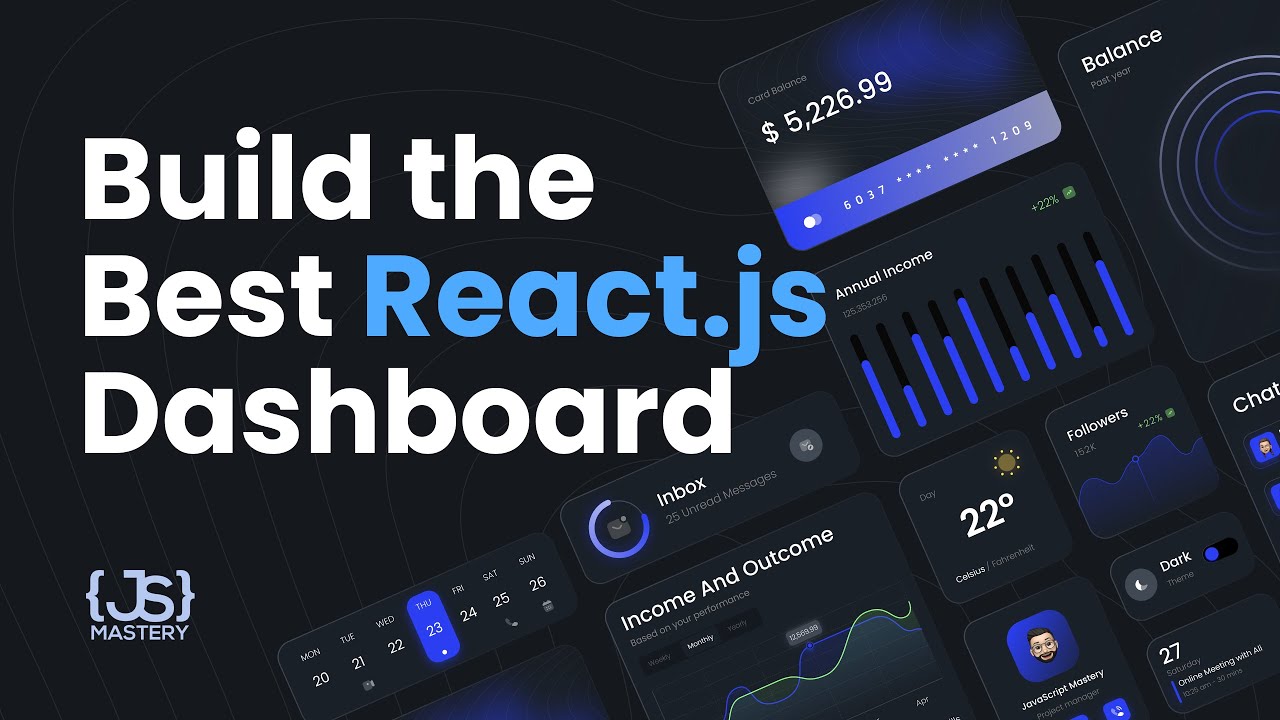
Every modern web developer must have the skills to build a React Admin Dashboard. This comprehensive guide will teach you how to create an advanced and customizable React Admin Dashboard application from scratch. The dashboard will include a multitude of features such as theming, data tables, charts, a calendar, and a Kanban board. By the end, you will create a polished, production-ready application that you can showcase in your portfolio.
Overview of Features
The Admin Dashboard we will build includes a variety of essential components:
- Dashboard overview
- Data tables
- Charts and graphs
- Calendar functionality
- Kanban board
- Theme selection and customization
- Responsive design for mobile and desktop
This dashboard application is mobile responsive, customizable, and uses the Syncfusion UI component suite to simplify UI development.
Getting Started with Your React App
Before diving into the application, ensure you have the following software installed:
- Node.js
- npm (Node Package Manager)
- Create React App (or an equivalent React setup bootstrapping tool)
You can create a basic React app using:
npx create-react-app my-admin-dashboard
cd my-admin-dashboard
Once inside your app directory, install Syncfusion components using npm.
npm install @syncfusion/ej2-react-grids @syncfusion/ej2-react-charts @syncfusion/ej2-react-calendars
Dashboard Layout
Start shaping the layout of your dashboard. Here’s how to structure your main App.js file:
import React from 'react';
import { BrowserRouter as Router, Route, Switch } from 'react-router-dom';
import Dashboard from './components/Dashboard';
import Orders from './components/Orders';
import Employees from './components/Employees';
import Customers from './components/Customers';

const App = () => {
  return (
    <Router>
      <div className="app-container">
        <Sidebar />
        <main>
          <Switch>
            <Route path="/" component={Dashboard} exact />
            <Route path="/orders" component={Orders} />
            <Route path="/employees" component={Employees} />
            <Route path="/customers" component={Customers} />
          </Switch>
        </main>
      </div>
    </Router>
  );
};

export default App;
This file sets up routing for the main pages of your dashboard. Each component corresponds to the different functionalities of your admin panel.
Creating the Sidebar
Your application should include a responsive sidebar for navigation. Use React Router to navigate between sections of the dashboard seamlessly. Create a Sidebar.js component that contains links to each page.
Sidebar Example
import React from 'react';
import { Link } from 'react-router-dom';

const Sidebar = () => {
  return (
    <div className="sidebar">
      <Link to="/">Dashboard</Link>
      <Link to="/orders">Orders</Link>
      <Link to="/employees">Employees</Link>
      <Link to="/customers">Customers</Link>
    </div>
  );
};

export default Sidebar;
Implementing Dynamic Themes
One important feature of modern web applications is the ability to toggle between different themes. With this dashboard, users will be able to switch between light and dark modes. You can achieve this by creating a ThemeProvider using React's context API.
Example of Theme Provider
import React, { createContext, useState } from 'react';

export const ThemeContext = createContext();

const ThemeProvider = ({ children }) => {
  const [theme, setTheme] = useState('light');

  const toggleTheme = () => {
    setTheme((prevTheme) => (prevTheme === 'light' ? 'dark' : 'light'));
  };

  return (
    <ThemeContext.Provider value={{ theme, toggleTheme }}>
      {children}
    </ThemeContext.Provider>
  );
};

export default ThemeProvider;
This context will allow any component wrapped within the ThemeProvider to access the current theme and function for toggling the theme.
Building Custom Components
1. Data Tables
One of the core features in admin panels is data management, and with Syncfusion's grid component, you can quickly assemble data tables.
Example of a Data Table using Syncfusion:
import { GridComponent, ColumnsDirective, ColumnDirective } from '@syncfusion/ej2-react-grids';

const Orders = () => {
  return (
    <GridComponent dataSource={orderData}>
      <ColumnsDirective>
        <ColumnDirective field='OrderID' headerText='Order ID' width='100' />
        <ColumnDirective field='CustomerName' headerText='Customer Name' width='200' />
      </ColumnsDirective>
    </GridComponent>
  );
};
2. Charts
Use the Syncfusion charts collection to represent data visually. You can add various chart types, like bar charts and line charts, to the dashboard.
Example of a Line Chart:
import { ChartComponent, SeriesCollectionDirective, SeriesDirective } from '@syncfusion/ej2-react-charts';

const LineChart = () => {
  return (
    <ChartComponent>
      <SeriesCollectionDirective>
        <SeriesDirective dataSource={lineData} />
      </SeriesCollectionDirective>
    </ChartComponent>
  );
};
3. Calendar and Kanban Boards
You can utilize widgets like the calendar and Kanban boards in your dashboard, allowing users to manage tasks effectively.
Conclusion
By following this guide, you've built a comprehensive React Admin Dashboard with various functionalities, layout designs, and features such as charts, tables, and custom theming. This application demonstrates the power of React combined with Syncfusion components.
Get Started
Feel free to utilize the full code repository linked below. Experiment with more features, enhance functionalities, and tailor the dashboard to meet specific project requirements. Don't forget to showcase your completed project in your portfolio!
Explore the full repository containing the finished product and experiment with the code yourself! Happy coding!
Useful Links


Comments
Post a Comment